How to Create and Manage Wheel Colors
Wheel colors control how each slice appears on your wheel spinner. In Spin The Wheel Random Picker, you can create custom color palettes, use AI to generate color themes, manually edit slices, duplicate saved colors, or reset everything back to default.
Creating a New Wheel Color
Option 1: Quick Colors (Automatic Palette)
- Click New Color in the top menu.
- Select Quick Colors.
- Choose how many color options you want.
- Click Quick Colors to auto-generate a matching palette.
Quick Colors automatically creates a balanced color scheme that complements your current theme background.
Option 2: AI Generate Colors
- Click New Color → AI Generate Colors.
- Paste your Google Gemini API Key. Security Note: The web version does NOT store or save your API key. You must enter it each time you reload the page. To securely save your key, use the desktop or mobile app version.
-
Select a Gemini model:
- Flash-Lite – Fastest
- Flash – Balanced
- Pro – Highest quality
- Enter a prompt (example: “Easter pastel palette, 7 colors”).
- Click AI Generate Colors.
Tip: Include the number of colors in your prompt to control how many slices are generated.
Manual Color Editing
To customize colors manually:
- Click Manual Input Color.
- Enter a color name.
- Use the color picker to adjust background and text colors.
- Click + Add Color Option to add more slices.
To edit a specific slice quickly, click on the slice directly. A popup will appear allowing you to change:
- Background color
- Text color
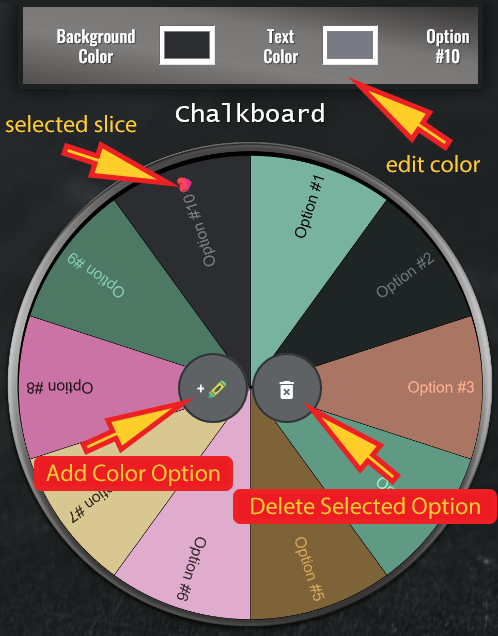
Changes are saved automatically.
Managing Saved Wheel Colors

Duplicate a Wheel Color
- Open My Colors.
- Click Duplicate under the selected color.
- A copy appears labeled “(Copy)”.
- Edit the duplicate without affecting the original.
Delete a Wheel Color
- Open My Colors.
- Click Delete.
- Confirm deletion.
Note: Deleted wheel colors cannot be restored.
Reset Wheel Colors to Default
The Reset button restores default sample palettes (such as Merry Christmas or Yin and Yang) and permanently deletes all custom colors.
This action cannot be undone.
Editing an Existing Wheel Color
- Open My Colors.
- Select your saved color.
- Use Manual Input or Bulk Input.
- Click slices directly for quick adjustments.
Your changes save automatically.
Shortcut Keys for Faster Color Management
- F1: Access Help for quick assistance.
- Escape (ESC): Close Color Management and return to the Main Screen, or close the Help modal window when needed.
- Alt + N (or Ctrl + N): Create a New Wheel Color effortlessly.
- Windows: Alt + A: (Mac: ⌘ + Shift + A): Add a Color Option.
- Windows: Alt + D: (Mac: ⌘ + Shift + D): Duplicate your Selected Wheel Color with a simple keystroke.
- Windows: Alt + X: (Mac: ⌘ + Shift + X): Delete the Selected Wheel Color quickly.
- Windows: Alt + R: (Mac: ⌘ + Shift + R): Reset All Colors to Default settings for a fresh start.
Why Customize Wheel Colors?
Custom wheel colors improve readability, visual appeal, and theme matching. Whether you're running a classroom activity, giveaway, or game night, color control makes your wheel more engaging and professional.