Export and Import Wheels
The Export and Import Wheels feature allows you to easily transfer your wheels between devices or share them with others. Whether you're moving from a home computer to a work computer, or sending a wheel to a friend, this feature makes the process fast and simple.
Your wheel data is securely saved and accessed using a unique Access Code, so you can continue working exactly where you left off.
Why Export and Import Wheels?
- Move wheels between home and work computers
- Share wheel setups with friends or teammates
- Create backups of important wheels
- Continue projects on another device without rebuilding wheels
How to Export Wheels
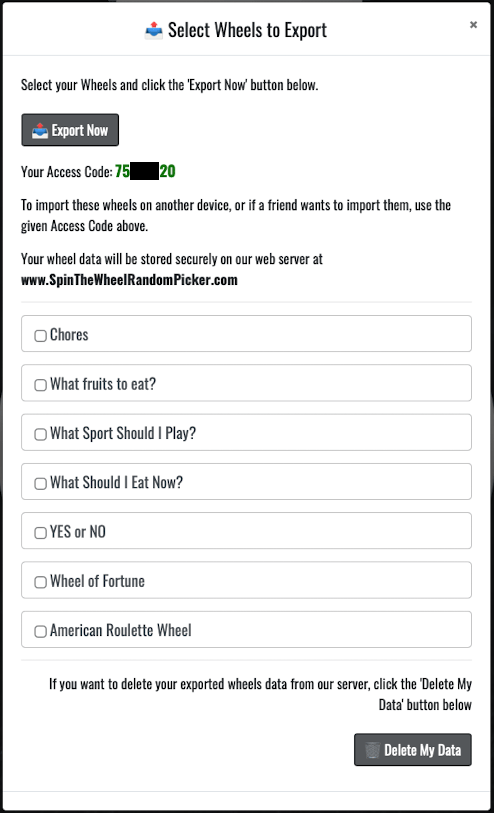
- Open the My Wheels menu.
- Click the Export button.
- Select the wheels you want to export.
- Click 📤 Export Now.
Your selected wheels will be securely saved on our server, and an Access Code will be generated.
Important: Save or copy this Access Code. You will need it to import the wheels on another device.
How to Import Wheels
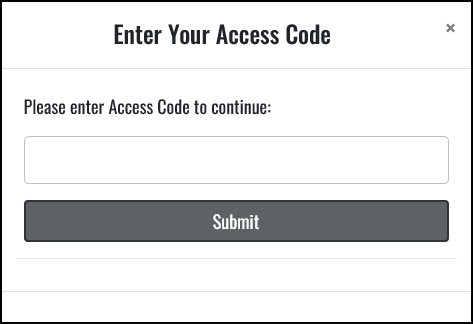
- On your other device, open the My Wheels menu.
- Click the Import button.
- Enter your saved Access Code.
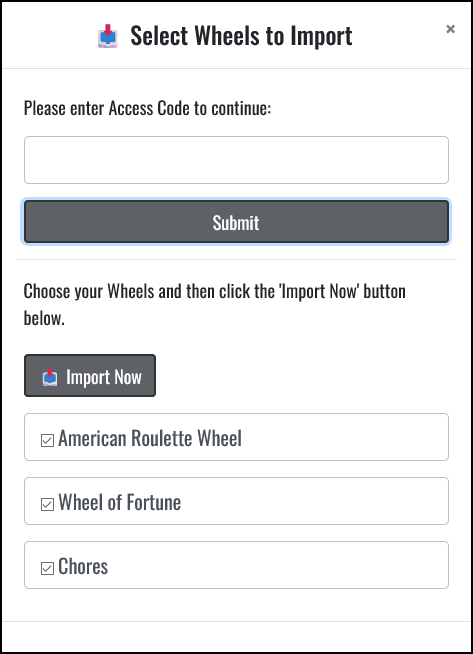
- Select the wheels you want to import.
- Click 📥 Import Now.
If the Access Code is valid, your wheels will be added instantly to your wheel list, allowing you to continue without interruption.
Tips for Using Export & Import
- Export wheels before resetting or reinstalling the app
- Keep Access Codes private to prevent unauthorized imports
- Import only the wheels you need to keep your list organized
- Each time you click Export Now, the app sends the currently selected wheels to the server and saves them in the database. This action overwrites any previously exported wheels associated with that Access Code.
- If you want to save a single wheel and access it later, use the Share Your Wheel feature. It saves one wheel to the server and creates a shared link URL that can be opened to reload the wheel into the app at any time.