Share Your Wheel
The Share Your Wheel feature lets you save a single wheel to the server and generate a shared link URL that anyone can open. It’s perfect for sharing wheels with friends, classrooms, teams, giveaways, and online audiences.
Unlike exporting multiple wheels at once, sharing is designed for saving and recalling an individual wheel later by using its unique link.
How to Create a Shared Link URL
- Open the wheel you want to share.
-
Click the button at the bottom-right of the screen to open Share dialog.
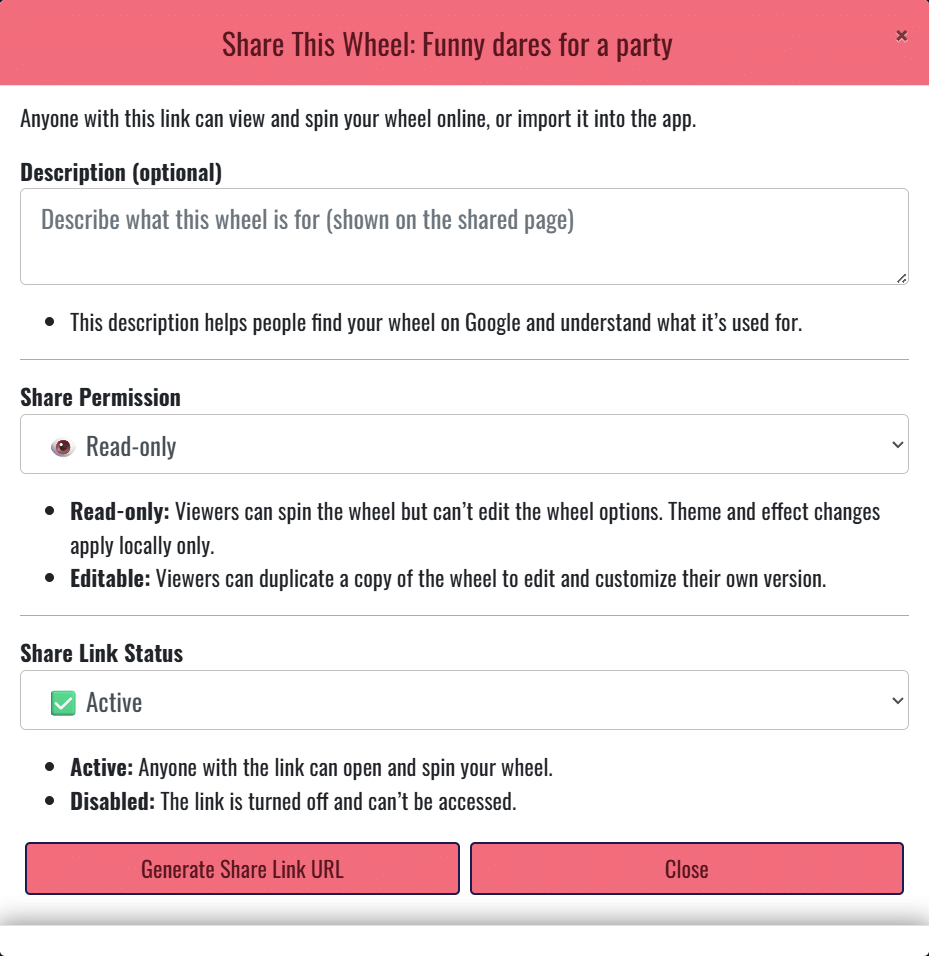
- Write a short description for your wheel to help people understand what it is. This also helps the wheel appear in search results.
- Choose your permission level (Read-only or Editable/Allow Duplicate).
-
Set the shared link status:
- Active – the link works and the wheel can be opened
- Disabled – the link is temporarily turned off
- Click Generate Share Link URL.
After you generate the link, you can copy it and share it anywhere.
How to Update an Existing Shared Wheel
If your wheel has already been shared, you do not need to create a new link.
- Open the wheel that you previously shared.
- Click the button again (bottom-right corner). You will see the shared status indicator: ✅ Active (link is live) or ⛔ Disabled (link is inactive).
- Update the description, permissions, or status as needed.
- Click the Update button to save your changes. Note: Any changes to your wheel (title, options, theme, music background, effects, etc.) will also update automatically on the existing shared link.
This keeps your shared link up-to-date so your audience always gets the latest version of the wheel.
Shared Links Manager
To manage all your shared wheels in one place, open:
More menu → Shared Links Manager
In Shared Links Manager, you can:
- Open Wheel (restore it back into the app)
- Copy Link URL to clipboard to share with others
- Update permissions and status (Active / Disabled)
- Delete a shared link when you no longer want it available
Tips for Sharing Wheels
- Write a clear description so people understand your wheel quickly (for example: “Chores wheel for kids” or “YouTube giveaway winner picker”).
- Use Disabled status if you want to temporarily turn off a link without deleting it.
- If you want to move multiple wheels between devices, use Export and Import Wheels. If you want to save and recall a single wheel later, use Share Your Wheel.