Using Your Own Custom Fonts
Spin The Wheel Random Picker allows you to use any system font already installed on your computer. This gives you full creative control over how your wheel looks and feels.
Instead of uploading font files, the app references fonts that already exist on your system. Once added, the font can be selected and applied to your wheel instantly.
To add your own custom fonts to the app’s font list, open the Settings menu from the top navigation bar. Inside Settings, you’ll find the option to manage fonts, where you can enter a system font name and add it to your personal font library. Once added, the font becomes available for use on any wheel.
Using Custom Fonts on Windows
Follow these steps to add a custom font on Windows:
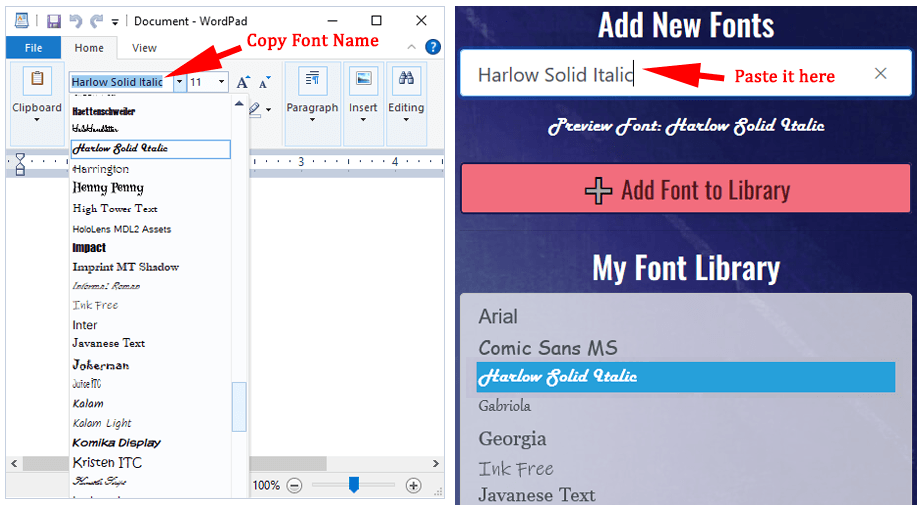
Step 1: Find the System Font Name
- Open WordPad or any text editor that shows installed fonts.
- Open the font dropdown to view the list of available system fonts.
- Locate the font you want to use and note its exact name.
Step 2: Add the Font to the App
- Open Spin The Wheel Random Picker.
- Paste the system font name into the textbox labeled Enter Font Name.
- Click
- The font will appear in your font list and is ready to use.
Using Custom Fonts on macOS
Follow these steps to add a custom font on macOS:
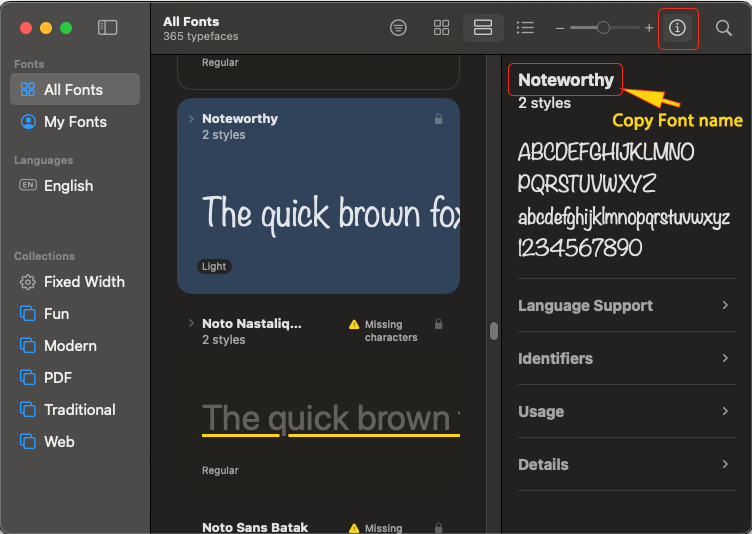
Step 1: Open Font Book
- Press Cmd + Space to open Spotlight.
- Type Font Book and open the app.
- You’ll see a list of all fonts installed on your Mac.
- Click a font to preview it.
- If needed, click the info icon to view the font’s full name.
Step 2: Copy the Font Name and Add It
- Copy the exact system font name.
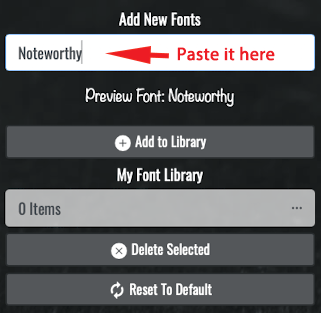
- Open Spin The Wheel Random Picker.
- Paste the font name into the Enter Font Name field.
- Click
- The font will now be available for your wheel.
Tips for Using Custom Fonts
- Font names must match the system font name exactly.
- Fonts must already be installed on your device.
- If a font doesn’t appear, restart the app and try again.
- Custom fonts are saved with your wheel automatically.
Using custom fonts lets you create wheels that match your theme, brand, or personal style perfectly.